

Install
Add MechAI to your Onshape workspace from the app store listing.1
Subscribe to MechAI
On the app store page, click Subscribe.
2
Choose the free plan
On the next screen, click Get for free.
3
Close the confirmation dialog
When the Subscribed to MechAI dialog appears, click Close.
4
Confirm installation
Return to your Onshape workspace and confirm the MechAI app appears in the right-side app bar.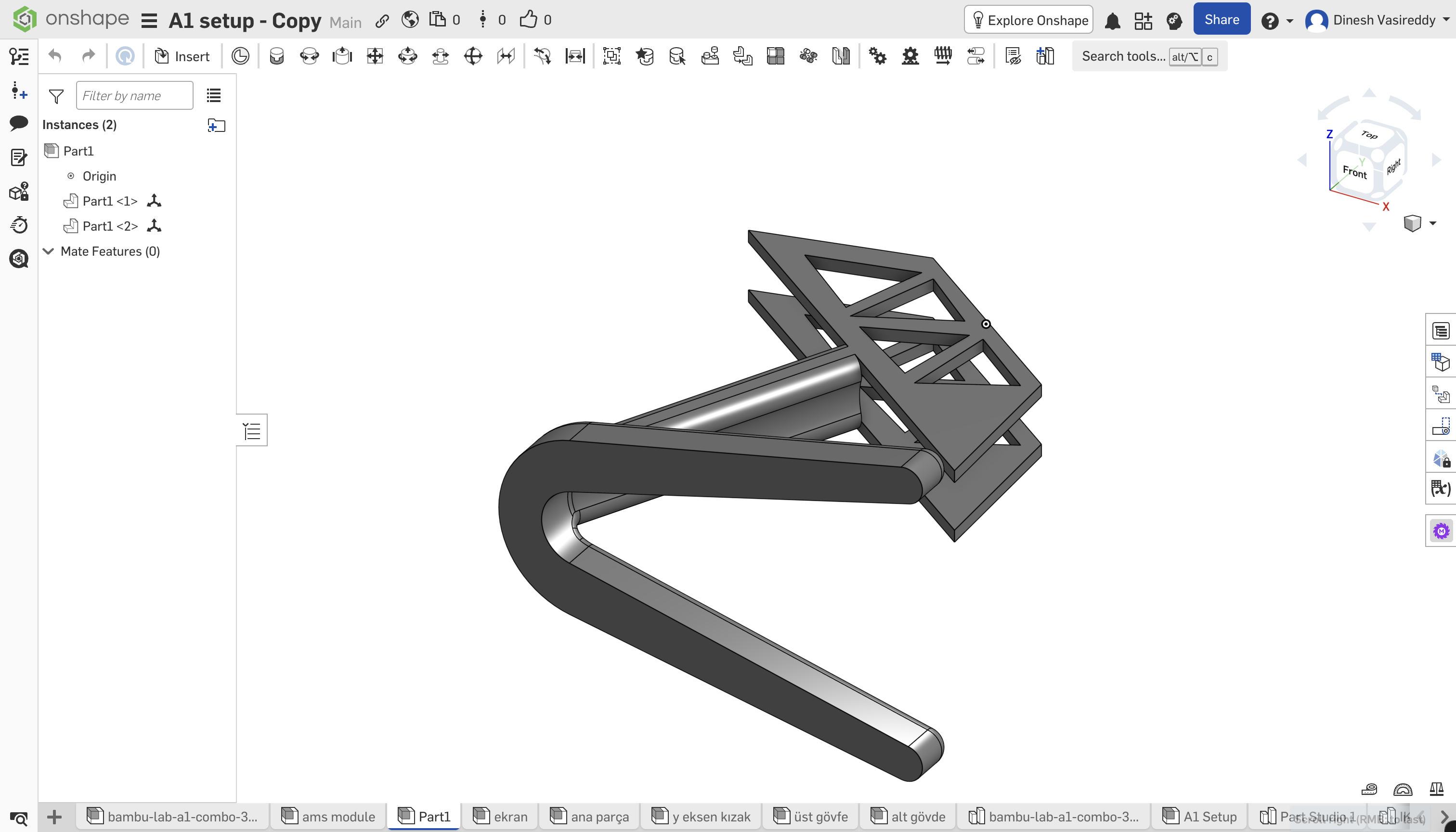
Sign in or create an account
MechAI access is tied to your work email. In the panel, use Sign up for your first visit, or Sign in if you’ve already created an account.1
Open MechAI
In the Onshape app bar, open MechAI. The right-side panel opens to the sign in screen. Sign in with Google or your email and password. If you don’t yet have an account, use the next step.
Sign in with Google or your email and password. If you don’t yet have an account, use the next step.2
Sign up if you're new
If you still need an account, click Don’t have an account? Sign Up at the bottom of the sign-in panel. Complete the form with Sign up with Google or email and a new password, then click Sign Up.
Complete the form with Sign up with Google or email and a new password, then click Sign Up.Allow third-party cookies
MechAI needs third-party cookies to authenticate inside Onshape. If the panel won’t load, you see a cookie warning, or sign-in loops, allow third-party cookies in your browser and try again.Google Chrome
- In Chrome, click the Chrome menu icon in the upper right.
- Click Settings.
- In the Privacy and security section, click Third-party cookies.
- Select Allow third-party cookies.
- Make sure Block third-party cookies is not selected.
Safari
- In Safari, open the Safari menu and select Settings.
- Select Privacy.
- Disable Prevent cross-site tracking.
- Select Advanced.
- Disable Block all cookies.
Firefox
- In Firefox, open the menu and go to Settings > Privacy & Security.
- Under Enhanced Tracking Protection, select Standard.
- Do not use Strict or an overly restrictive custom setting.
- If you use Custom, make sure cookies are not fully blocked.
Edge
- In Edge, select Settings and more in the upper right.
- Select Settings.
- In the left sidebar, select Privacy, search, and services.
- Select Cookies.
- Disable Block third-party cookies.
- Restart Edge.