> ## Documentation Index
> Fetch the complete documentation index at: https://docs.trymechai.com/llms.txt
> Use this file to discover all available pages before exploring further.
# MechAI for Onshape
> Install, sign in, and run your first AI workflow.
## Install
Add MechAI to your Onshape workspace from the [app store listing](https://cad.onshape.com/appstore/apps/Design%20&%20Documentation/69180f246bbdc64e50256ad9).
On the app store page, click **Subscribe**.

On the next screen, click **Get for free**.

When the **Subscribed to MechAI** dialog appears, click **Close**.

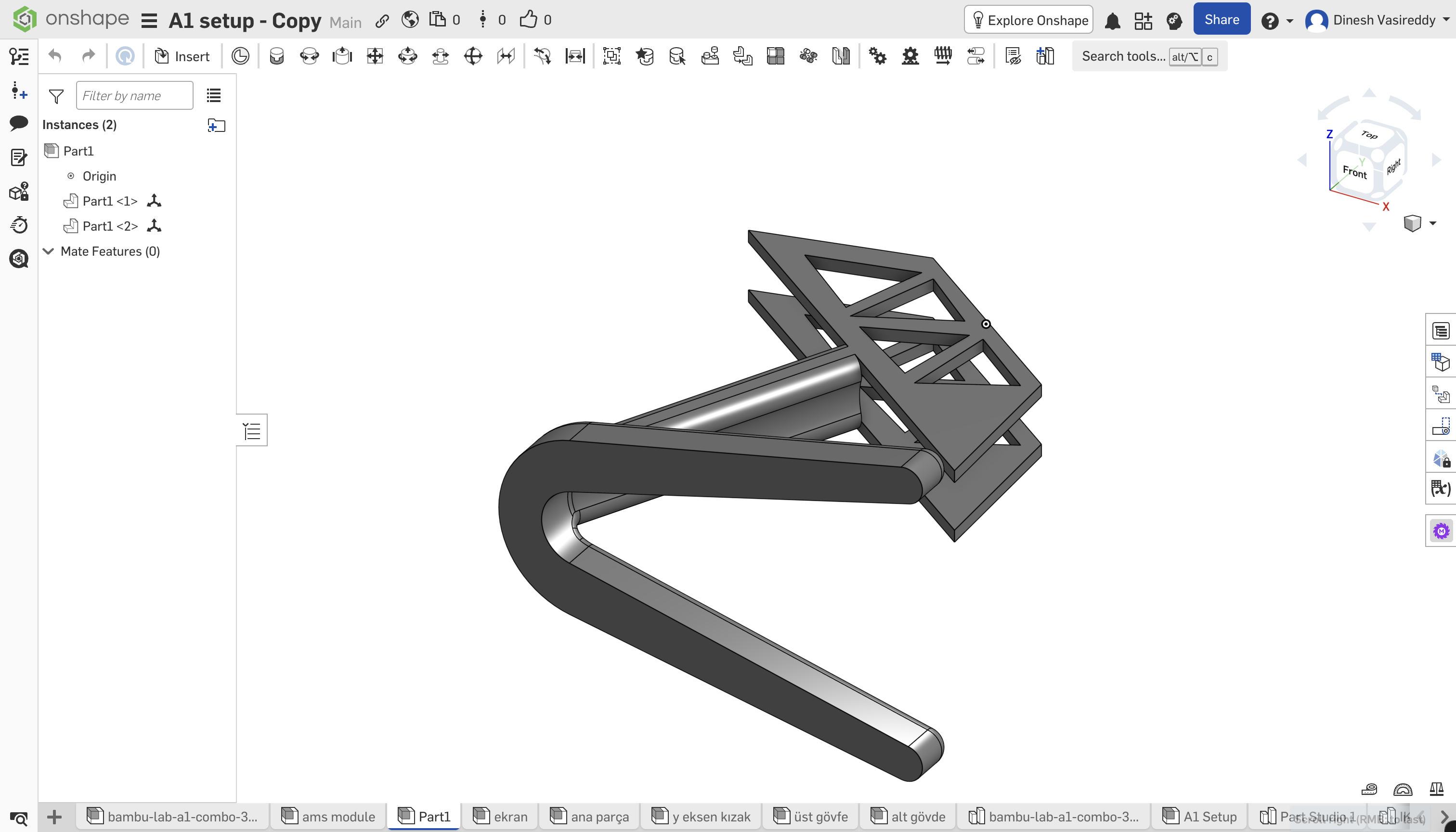
Return to your Onshape workspace and confirm the MechAI app appears in the right-side app bar.
## Sign in or create an account
MechAI access is tied to your work email. In the panel, use **Sign up** for your first visit, or **Sign in** if you've already created an account.
In the Onshape app bar, open **MechAI**. The right-side panel opens to the sign in screen.

**Sign in with Google** or your email and password. If you don't yet have an account, use the next step.
If you still need an account, click **Don't have an account? Sign Up** at the bottom of the sign-in panel.

Complete the form with **Sign up with Google** or email and a new password, then click **Sign Up**.
## Allow third-party cookies
MechAI needs third-party cookies to authenticate inside Onshape. If the panel won't load, you see a cookie warning, or sign-in loops, allow third-party cookies in your browser and try again.
### Google Chrome
1. In Chrome, click the Chrome menu icon in the upper right.
2. Click **Settings**.
3. In the **Privacy and security** section, click **Third-party cookies**.
4. Select **Allow third-party cookies**.
5. Make sure **Block third-party cookies** is not selected.
### Safari
1. In Safari, open the **Safari** menu and select **Settings**.
2. Select **Privacy**.
3. Disable **Prevent cross-site tracking**.
4. Select **Advanced**.
5. Disable **Block all cookies**.
### Firefox
1. In Firefox, open the menu and go to **Settings** > **Privacy & Security**.
2. Under **Enhanced Tracking Protection**, select **Standard**.
3. Do not use **Strict** or an overly restrictive custom setting.
4. If you use **Custom**, make sure cookies are not fully blocked.
### Edge
1. In Edge, select **Settings and more** in the upper right.
2. Select **Settings**.
3. In the left sidebar, select **Privacy, search, and services**.
4. Select **Cookies**.
5. Disable **Block third-party cookies**.
6. Restart Edge.
## Troubleshooting
Still having issues? Email **[team@trymechai.com](mailto:team@trymechai.com)** and we'll help.